Official Manual / Quick Start
Shadowrocket Setup Guide
Start with details you already have, then import them, choose a mode, connect, and verify access. This page covers the steps needed to get started; see the settings guide for rule concepts and a full reference to Settings.
Success means your details are saved, the selected mode matches your needs, test destinations are accessible, and requests use the expected policies—not simply that the switch is on. For your first setup, get one server working before organizing the rest so you can pinpoint where any issue occurs.
Step 01 / Add Server
Add a server or import a subscription with Subscribe
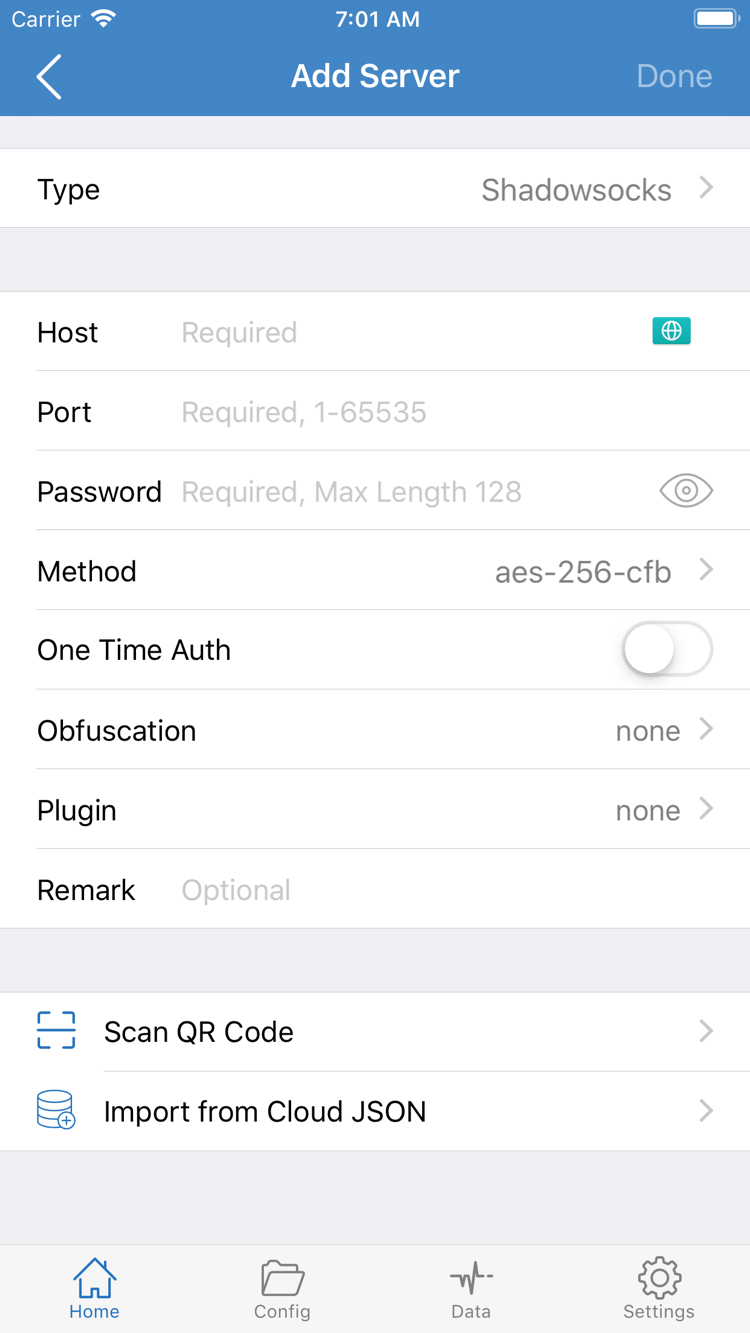
After opening Shadowrocket, go to Home and find Add Server near the SERVER group. First identify the details you have: use Subscribe for a link that retrieves a server list, or add a server manually if you have its address, port, protocol, and authentication details. Both options save existing details in the app; saving does not create a new service.
Have a subscription link? Choose Subscribe
Open Add Server, tap Type, and choose Subscribe. Enter the full subscription link you already have in URL, then save. Check the beginning, end, and query parameters after pasting, especially for added spaces, line breaks, or missing characters. Subscription URLs often contain access credentials. Don't share them publicly as if they were ordinary web addresses or post the full URL in a public forum.
Return to Home and wait for the subscription to load. If the subscription group appears but no servers are listed, use the update option in that group and check for an error message. Saving the URL only confirms that the input was accepted; it does not mean the remote content was retrieved successfully. If an error occurs, check that the original link is complete, your current network can retrieve its contents, and the service is still active. Don't repeatedly add the same subscription.
Have details for one server? Enter each field
In Add Server, select the Type that matches your details, then enter Host and Port. The fields shown depend on the protocol. Password and Method in the screenshot are examples of one form, not fields shared by every protocol. Match the authentication method, encryption method, and other required parameters to your service details. Don't choose a protocol based on a similar name, and don't enter the port in Host.
If you already have an importable QR code, use Scan QR Code. Use Import from Cloud JSON only when your details are in the corresponding format. After importing, check Type, address, and port; a successfully scanned QR code doesn't guarantee that every field is correct. Save, return to Home, select the server you want to test, and check the selection indicator. Choose Global Routing before connecting to avoid mistaking a mode issue for an import failure.
Step 02 / Global Routing
Choose a Global Routing mode
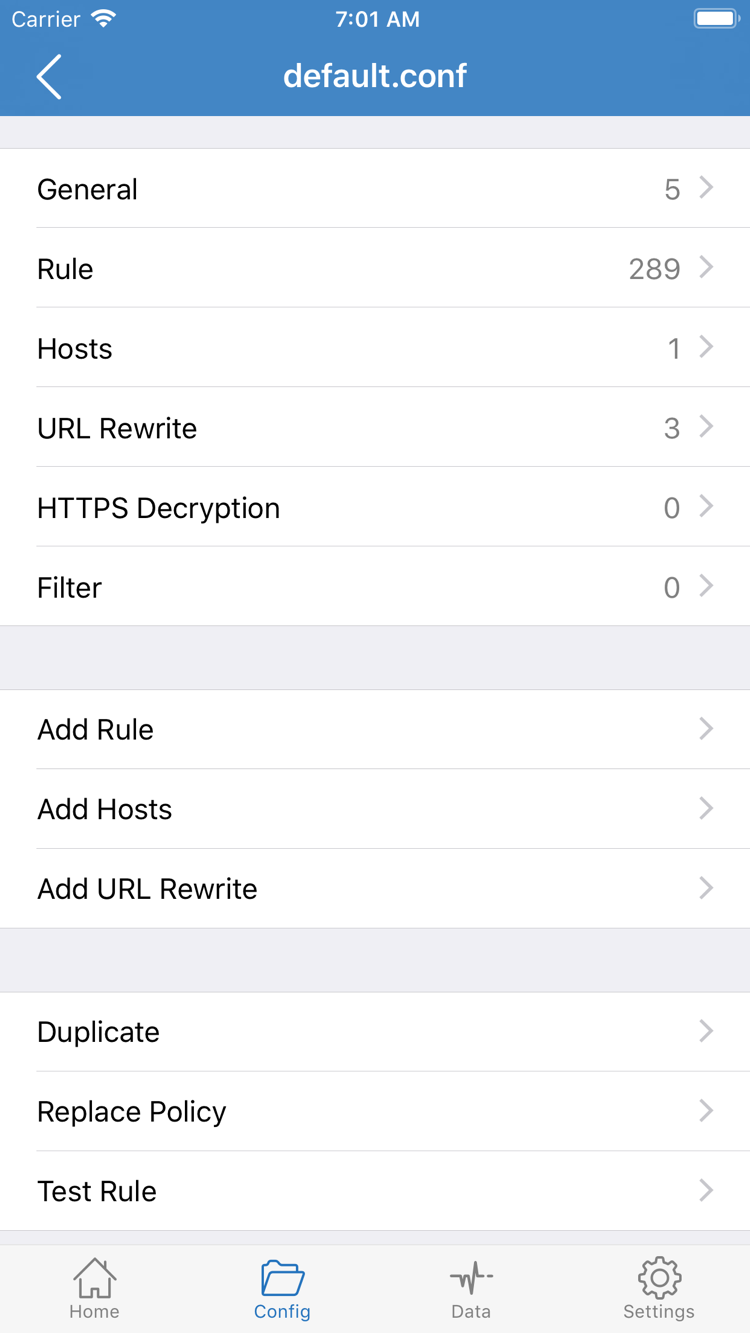
Return to Home and open Global Routing. For your first setup, distinguish between three things: server entries store connection details, Config stores rules and configuration parameters, and Global Routing determines the overall handling mode in use. Importing a subscription does not mean you have imported a rules file, and selecting an entry in SERVER does not determine which sites should use a proxy.
- Config: Matches requests against the rules in the currently enabled config file; suitable for everyday use when destinations need different handling policies.
- Proxy: Routes general requests through a proxy. This can help you check the selected server, but it does not guarantee that all traffic will use the same exit.
- Direct: Handles general requests as direct connections. Useful for checking your basic network, but not for verifying that a proxy server works.
To use rule-based routing, choose Config, then open Config to check the currently enabled file. Confirm that the selected file is the one you intend to use—not another file that was just imported but is not enabled. General, Rule, Hosts, URL Rewrite, and HTTPS Decryption in the screenshot are config editing sections. When getting started, focus on Rule and file selection; you don't need to edit every section to connect.
Understand a single matching rule before changing the whole config
Rules are generally checked in order, and the matching rule determines the policy used. This is a syntax example only: example.com is a sample domain, not a recommended test destination or a complete config. The first line sends that domain and its subdomains through PROXY; the final FINAL rule sends requests that don't match earlier rules through DIRECT.
DOMAIN-SUFFIX,example.com,PROXY
FINAL,DIRECT
When using Add Rule, place specific destinations before fallback rules. Don't change every rule to PROXY just because a site won't load, and don't edit HTTPS Decryption unless you understand its effects. Keep a copy of the original config before making changes, and confirm that the correct file is enabled after saving. For a more complete guide to config structure, DNS, and rule order, see the Settings and config guide. Then return to Home to connect.
Step 03 / Home
Connect and approve the system prompt
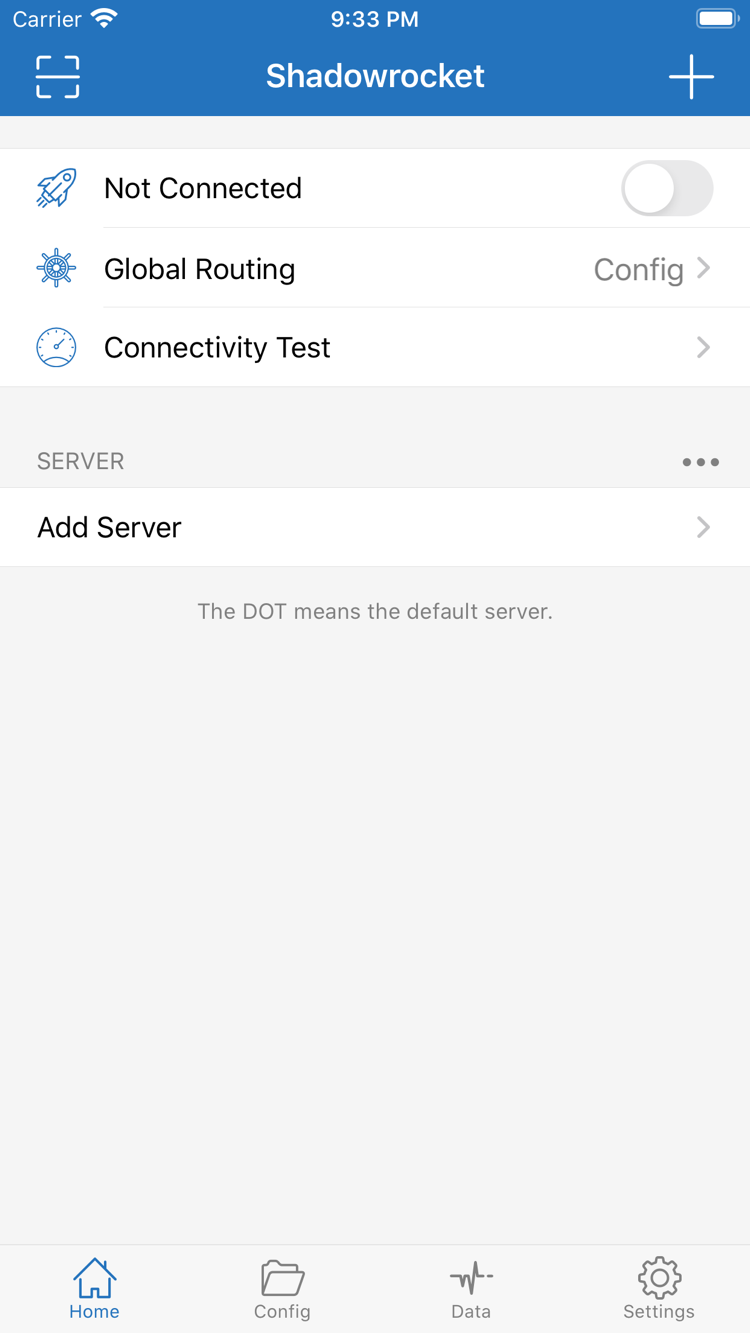
On Home, check the selected server and the current Global Routing mode again. Not Connected at the top of the screenshot means there is no active connection; tap the switch at the top to connect. The first time you connect, the system may ask to let Shadowrocket add a VPN configuration. This allows the device to route relevant requests through Shadowrocket; it is not a purchase or renewal step.
Once you've confirmed the prompt is from the action you just started, approve it as requested. The system may also ask for your device passcode or identity verification. Return to Shadowrocket and check whether the switch and status text have changed. If you previously denied permission, start the connection again in the app and follow the system prompts. Don't repeatedly delete the app to resolve the same permission issue.
Check switch status separately from service availability
If the connection switch stays on, the device has started the connection process. That alone doesn't prove the server is reachable, authentication is valid, DNS is working, or the correct rule matched. Even if the system shows a VPN status, you still need to test real access in the next step. If the status immediately returns to disconnected, note the message, check system authorization and whether the current config loads, then follow the troubleshooting steps.
Keep the network unchanged during your first test. Don't switch Wi-Fi, edit rules, and change servers at the same time. That way, if the result changes, you can narrow down the cause to your last action. The layout may differ on iPad and iPhone, but check the same path: Home, Global Routing, then the connection switch. After connecting, leave On Demand unchanged until manual connection tests pass; then decide whether you need automatic activation.
Step 04 / Connectivity Test
Verify that the server and rules are working
On Home, use Connectivity Test to check the selected server. Results depend on Test Method in Settings: different methods test different parts of the connection. One successful test doesn't mean every site will open, and one failure doesn't prove that your authentication details are wrong. First confirm the test is for the entry you intend to use, then consider the result alongside real requests.
Check your expectations against real requests
- Open a browser and visit a page known to be accessible. Wait for the current request to finish instead of relying on previously cached content; reload the page or try one you haven't opened before if needed.
- If you use Config, test one destination expected to use PROXY and another expected to use DIRECT. Don't test just one and assume all the rules are working.
- Check the connection or log records visible in the app, matching them by destination domain, time, and policy. If a record appears, confirm that it corresponds to your current request rather than treating an older entry as a new match.
- If the page loads but the policy is wrong, return to Config and check the active file and rule order. If the policy is correct but access fails, check the server and destination service.
Traffic changes in Data are only an indication of network activity; they don't prove that a specific domain used PROXY. Other requests on the device can also generate traffic, and a change in exit address only describes the result for the request being tested. To verify a rule, specify a destination, make a new request, and check the policy used for that request—not a particular test value.
When you're done, record a set of repeatable conditions: current network, selected server, Global Routing mode, enabled Config, and test destinations. Reuse the same destinations after changing settings to make differences easier to spot. If results match your expectations, you can start using the app normally. If tests and real-world access disagree, continue with the troubleshooting steps below instead of changing more advanced settings right away.
Step 05 / Settings
Troubleshoot common issues in order
Troubleshoot from the basics to the rules, changing only one thing at a time. After each change, rerun the same test and confirm the result before continuing. If you replace a subscription, change servers, and edit DNS and rules all at once, even a successful fix won't reveal the cause—and it will be harder to maintain your setup.
Server not listed? Check the import result
If the expected server isn't on Home, check the saved subscription URL and update status first. Confirm your service details are still valid and the current network can retrieve the content. For manually added entries, return to Add Server and check Type, Host, Port, and authentication fields. Make sure there are no spaces around Password, and don't mistake a display name for a server address. For subscription issues, see the FAQ.
Switch is on but access fails? Check the network and mode first
Temporarily disconnect and use the same network to visit a page known to be accessible. Confirm that the basic network works, and complete any required web-based network sign-in first. Reconnect, then check the selected server and Global Routing mode. If Direct was selected by mistake, that result can't prove that the proxy works. If Config is selected, check that the correct file is enabled and whether the destination matched DIRECT or REJECT.
If appropriate and you understand the effect, temporarily switch to Proxy and test the same destination, then restore the original mode. If Proxy works but Config doesn't, check the config and matching policy first. If both fail, continue checking the server, authentication, and destination service; this comparison alone doesn't prove that DNS is the problem.
Only some destinations fail? Check DNS and the test method
If only some domains fail, first check whether the destinations themselves are available and whether the rules are too broad, then review DNS-related parameters in the config. Don't replace existing settings with an address list you found online; keep the original values and change one item at a time, retesting after each change. Test Method in Settings controls how the test is run; it doesn't change how all real website requests work. Switching the test method alone won't fix browser access.
Connection resumes automatically? Check On Demand
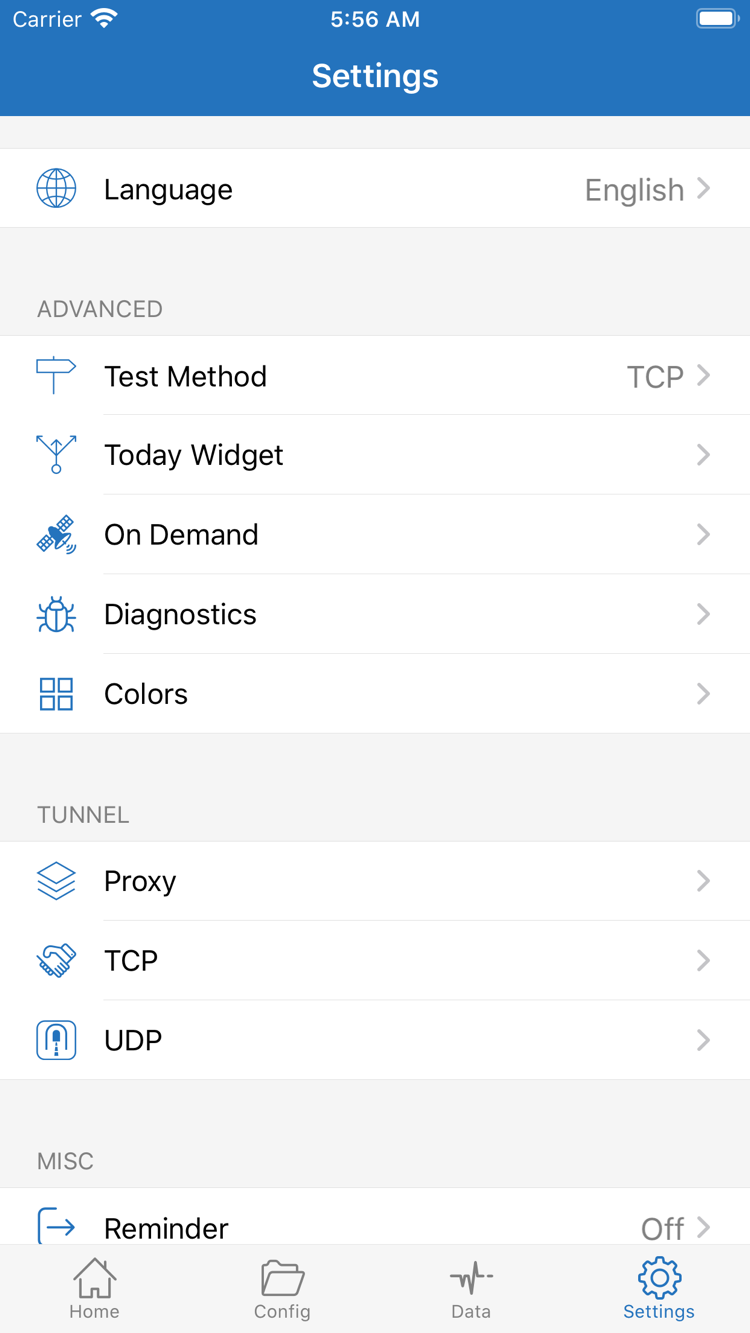
If the connection comes back after you disconnect manually, check On Demand in Settings and review any configured triggers. You can temporarily pause automatic triggers while troubleshooting, then test manually. Today Widget is a shortcut, not a replacement for checking the final status on Home. The Proxy, TCP, and UDP sections contain more detailed behavior settings; leave them unchanged during initial setup unless you have a specific need.
Still can't find the cause? Keep diagnostic details minimal
When using Diagnostics or related logging features, check them soon after the problem occurs and note the time, destination, mode, and error message. Before saving or sharing records, redact subscription URLs, server authentication details, and personally identifying information. Share only the excerpts needed to assess the issue, not your full config. For system descriptions of logs and settings, see the settings guide. If you've identified a specific issue, check the FAQ for its solution.
Next / Keep a Working Baseline
Keep a working config, then adjust one item at a time
After your initial setup, keep a verified working config and note the selected server and Global Routing mode. After updating a subscription, check whether the server list changed. After editing rules, verify policies against fixed test destinations. Before changing a setting, understand what it affects. Assess whether your details are valid, the connection is established, and the rules are correct as separate questions to avoid repeated imports and unrelated changes.
You don't need to repeat every step just to switch to another existing server. Return to the relevant section when you need to reimport a config or adjust automatic connections. For more detail, see the Settings reference; for a specific error, consult the FAQ and troubleshooting guide.